What Does HTTPS Mean?
HTTPS stands for HyperText Transfer Protocol Secure. It is the secure version of HTTP, which is the system your browser uses to communicate with websites. When you see HTTPS in a web address, it means the data traveling between your browser and the website is encrypted. This means it is scrambled so that anyone who intercepts it cannot read it.
Think of it like mailing a letter in a sealed envelope versus writing your message on a postcard. With HTTPS, your information is sealed.
The Padlock Icon Explained
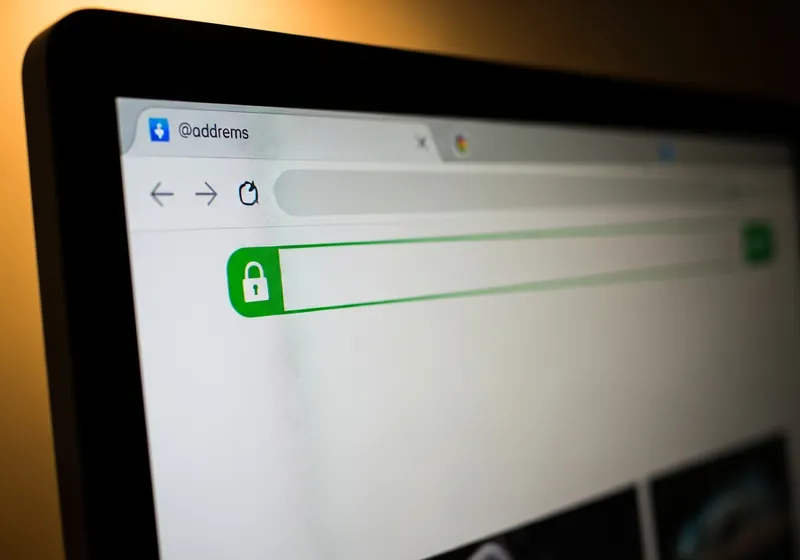
The small padlock icon in your browser's address bar is a visual indicator that the website is using HTTPS. When you see it, you know:
- The connection between your browser and the website is encrypted.
- The website has a valid security certificate, which confirms that the site is who it claims to be.
You can usually click on the padlock to see more details about the website's certificate, including who issued it and when it expires.
What the Padlock Does Not Guarantee
Here is where a common misconception comes in: the padlock does not mean the website is safe or trustworthy. It only means the connection is encrypted. A scam website can get an HTTPS certificate just as easily as a legitimate one.
Think of it this way. The padlock guarantees that your conversation with the website is private, but it does not tell you whether the person on the other end is honest.
When to Worry If HTTPS Is Missing
Most websites today use HTTPS by default. If you visit a site and your browser warns you that the connection is "Not Secure," it means the site is using plain HTTP without encryption. This is especially concerning if:
- The site asks you to log in or enter a password.
- You are about to enter payment information or personal details.
- The site claims to be a bank, store, or government service.
In these cases, do not enter any personal information. Navigate away and find the service through a trusted link or by typing the official address directly.
Common Misconceptions
There are a few things people often get wrong about HTTPS:
- "HTTPS means the site is legitimate." Not necessarily. Scammers use HTTPS too. Always check the full web address for misspellings or unusual domains.
- "I only need HTTPS on banking sites." Encryption is important everywhere. Even on a simple blog, HTTPS prevents others from seeing what you are reading or injecting fake content into the page.
- "No padlock means my computer is infected." Usually it just means the website has not set up HTTPS properly. It is a problem with the site, not your device.
What You Should Do
- Always look for HTTPS before entering passwords or payment details.
- Do not ignore browser warnings about insecure connections.
- Remember that HTTPS is one piece of the safety puzzle. Combine it with checking the website address, reading reviews, and using common sense.
HTTPS and the padlock icon are important tools for staying safe online, but they work best when you understand what they do and do not guarantee.