Why Parental Controls Matter
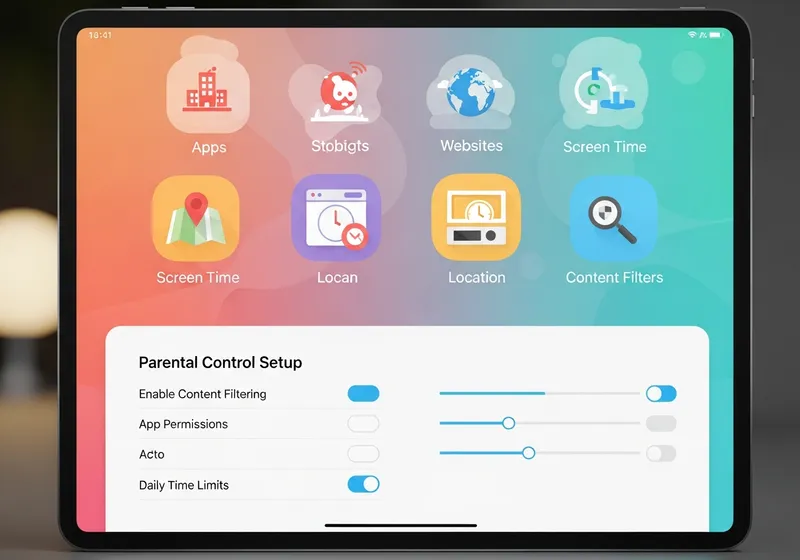
Children are going online at younger ages than ever before. Parental controls are tools built into devices and apps that help you manage what your kids can access, how long they spend online, and what information they share.
They are not a replacement for conversation and guidance, but they provide a helpful safety net.
Setting Up Controls on Phones and Tablets
Both major mobile platforms offer built-in parental controls:
- iPhone and iPad: Go to Settings, then Screen Time. You can set app limits, restrict content by age rating, block specific websites, and require a passcode for purchases.
- Android: Use Google Family Link to manage your child's device remotely. You can approve or block apps, set daily screen time limits, and see your child's location.
Computers and Laptops
- Windows: Microsoft Family Safety lets you set screen time limits, filter web content, and monitor activity reports.
- Mac: Screen Time settings on macOS work the same way as on iPhone, with content restrictions and app limits.
- Chromebook: Family Link also works on Chromebooks, giving parents the same controls as on Android devices.
Gaming Consoles
All major gaming consoles include parental controls:
- Set age-appropriate content ratings.
- Limit who can send messages or friend requests.
- Control online play and chat features.
- Set playtime limits.
Streaming Services
Most streaming platforms let you create kids' profiles with age-appropriate content only. Set a PIN to prevent children from switching to adult profiles. Review the settings on each platform your family uses.
Keep the Conversation Going
Parental controls are most effective when combined with open conversations about online safety. Talk to your children about why certain restrictions exist, what to do if they encounter something upsetting, and how to come to you with questions. Technology evolves quickly, so revisit and adjust your settings as your children grow.