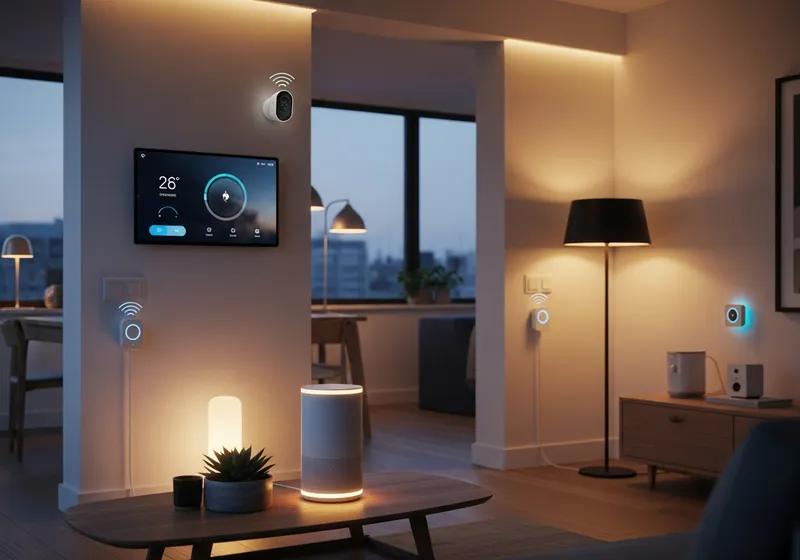
Smart home devices get compromised in predictable ways: a router still using its factory password, a camera running firmware nobody updated, a cloud account protected by a reused password. That means the fix is predictable too. Lock down your router, put smart gear on its own network, replace every default credential, keep firmware current, and switch off features you never use.
You do not need networking experience or new hardware for any of this. Almost all the work happens in two places: your router's admin page and the companion apps already on your phone. Expect the first full pass to take about an evening, with a few minutes of upkeep every couple of months afterward.
The steps below are ordered by impact. If you only get through the first two sections, you will still have closed off the most common paths attackers use to get into smart homes.
Start with your router, not the gadgets
Your router sits between the internet and every device you own, so it is the single highest-value thing to secure. A well-configured router protects even the flimsiest smart plug behind it. A poorly configured one undermines everything else you do.
Log in to the admin page first. The address and default login are usually printed on a sticker on the router itself, and common addresses are 192.168.1.1 or 192.168.0.1 typed into your browser. Many internet providers also offer a management app that does the same job. Once you are in:
- Change the admin password. This is separate from your Wi-Fi password. Factory defaults are printed in manuals anyone can find online, so a router still using one is effectively wide open.
- Set encryption to WPA3, or WPA2 if that is the best your router offers. If you see WEP or an open network selected, change it right away.
- Update the firmware and turn on automatic updates if the option exists. Router makers patch security holes regularly, but the fixes only help if they get installed.
- Turn off WPS (the push-button pairing feature) and remote management unless you genuinely use them. Both have a long history of being abused.
While you are logged in, look at the list of connected devices. If something is there that you cannot identify, change your Wi-Fi password and reconnect only the devices you recognize.
Give smart devices their own network
Network segmentation sounds technical, but on most home routers it is one setting: the guest network. Turning it on creates a second Wi-Fi network with its own name and password, and devices on it usually cannot see devices on your main network.
Move your smart plugs, bulbs, cameras, and speakers onto the guest network and keep your computers and phones on the main one. If a cheap smart bulb gets compromised, the attacker lands on a network segment with nothing worth stealing, instead of the one hosting the laptop with your tax documents.
Two practical notes. Some devices need your phone on the same network during initial setup, so join the guest network temporarily, finish setup, and switch back. And many mesh Wi-Fi systems include a dedicated IoT network option, which does the same job with even less fuss.
Replace every default password
Default credentials are how most camera takeovers actually happen. Lists of factory usernames and passwords circulate freely, and automated scanners try them against any device reachable online in a constant stream, day and night.
Every smart device has one or two passwords worth changing:
- The device password itself, if it has a local admin login. Cameras, video doorbells, and network video recorders often do.
- The cloud account in the companion app, which is usually the more valuable target because it can control the device from anywhere.
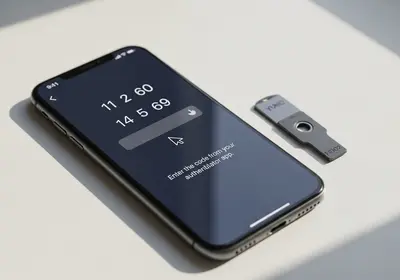
Use a long, unique password for each account, and let a password manager such as Bitwarden, 1Password, or KeePass remember them for you. If you need a strong one right now, our password generator will create it in a click. Then turn on two-factor authentication in each companion app's account settings. For anything with a camera or a lock, treat two-factor as mandatory rather than optional.
It also pays to check whether the email address behind those accounts has shown up in known data breaches, since attackers routinely try leaked passwords against smart home accounts. Our email breach checker will tell you in a few seconds.
Keep firmware current, and retire what is abandoned
Smart devices run software like any computer, and that software develops holes over time. The difference is that a lightbulb will never nag you to update the way your phone does, so you have to set updates up once and let them run.
Open each companion app and look under Settings, then Device Settings or Firmware, and enable automatic updates wherever they exist. For gear without that option, set a recurring calendar reminder and check manually every few months.
Pay attention to devices the manufacturer has stopped supporting. An abandoned camera or hub keeps working, but every newly discovered flaw in it stays open forever. When a device stops receiving updates, either replace it or accept the risk deliberately by keeping it isolated on the guest network, far from anything sensitive. When a company shuts down entirely, retire its cloud-connected products.
Turn off what you do not use
Every feature is a potential doorway, and smart devices ship with plenty enabled that most households never touch.
- UPnP on your router. This convenience feature lets devices open connections to the internet on their own. Disable it, then confirm everything still works. Most homes never notice the difference.
- Remote access on cameras and video recorders, if you only ever check them from home.
- Voice purchasing on smart speakers, unless you actually shop by voice.
- Microphones on smart TVs and remotes you never talk to.
- Content recognition on smart TVs, usually buried in the privacy menu, which tracks what you watch to sell advertising.
On your phone, review which apps are allowed to scan your home network at all. On an iPhone, go to Settings, then Privacy & Security, then Local Network, and switch off any app that has no business seeing your devices. Android keeps similar permissions under Settings, then Privacy.
Hold cameras, locks, and speakers to a higher standard
Some devices carry higher stakes than others. A compromised smart plug is an annoyance. A compromised camera or door lock is a genuine safety problem, so these deserve extra scrutiny.
For cameras and video doorbells: unique password, two-factor on, firmware updates automatic. Think about placement as well. Avoid pointing indoor cameras at bedrooms or anywhere a leak would be devastating, and use privacy modes or scheduling so indoor cameras stay off while you are home.
For smart locks: keep a physical key as a backup, give each family member a separate entry code, and delete codes when someone moves out or a relationship ends. Review the shared-access list in the app occasionally, because old accounts linger.
For voice assistants: they listen for a wake word and sometimes record by mistake. Open the assistant's app, find the voice history section, delete what is stored, and set recordings to auto-delete on the shortest schedule offered.
Buy with security in mind
The easiest vulnerability to fix is the one you never bring home. Before buying your next device, spend two minutes checking a few things:
- Does the manufacturer publish security updates, and does it say how long the product will be supported?
- Does the companion app support two-factor authentication?
- Can the device work locally, or does it depend entirely on the company's cloud servers staying online?
- Has the brand been around long enough to have a track record?
A no-name device from an online marketplace is often dramatically cheaper precisely because the maker spends nothing on updates or security review. For a smart bulb, maybe that trade is acceptable. For a camera or a lock, it is not.
Where to start tonight
You do not have to do everything at once. Here is a first pass that fits into a single evening, in the order that matters most:
- Log in to your router. Change the admin password, confirm WPA2 or WPA3 encryption, and update the firmware.
- Turn off WPS, UPnP, and remote management on the router.
- Create a guest network and move your smart devices onto it.
- Change default passwords on cameras and video doorbells, and turn on two-factor authentication for their accounts.
- Enable automatic firmware updates in every companion app.
- Delete stored voice recordings and set them to auto-delete.
- Unplug anything you no longer use, and remove it from its app account too.
After that first pass, maintenance is light: glance at your router's device list now and then, check for firmware updates on the stragglers every few months, and run the same two-minute vetting before each new purchase. A smart home does not have to be a soft target, and after tonight yours will not be.