Two-factor authentication, usually shortened to 2FA, is a login method that asks for two separate proofs of identity instead of one. The first proof is your password. The second is something you physically have, such as your phone or a small hardware key, or something you are, such as a fingerprint. An attacker who steals your password still cannot get into the account without that second piece.
You have almost certainly used it already. When your bank texts you a six-digit code, or an app on your phone asks you to approve a sign-in you just started on your laptop, that is two-factor authentication doing its job.
This guide covers how it works, which methods are strong and which are surprisingly weak, how to set it up in about five minutes, and exactly what to do if you lose your phone. None of it requires technical skill.
How Two-Factor Authentication Actually Works
Security professionals sort identity proofs into three categories, called factors. Something you know is a password or PIN. Something you have is a physical object, like your phone or a security key. Something you are is a biometric, like a fingerprint or your face.
A password alone is one factor. Two-factor authentication combines two different categories, which is why it works so well. A criminal on another continent can steal something you know through a phishing email or a leaked database. Stealing something you have requires getting at your actual phone, which is a far harder problem.
In practice, the login flow barely changes. You enter your password as usual, then the service asks for the second proof: a code from your phone, a tap on a notification, or a touch on a hardware key. Most services only ask for the second factor when you sign in from a new device or browser, so the extra step is rare once you are set up.
The Main Types of Second Factors
Services offer the second step in a few common forms. From weakest to strongest:
- Text message (SMS) codes: The service texts a one-time code to your phone number. Easy to use, but the weakest option, for reasons covered below.
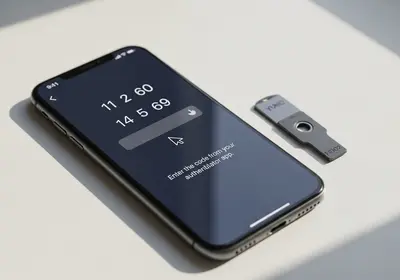
- Authenticator apps: A free app on your phone generates a fresh code every thirty seconds. This is the best balance of security and convenience for most people.
- Push approvals: Instead of typing a code, you tap Approve on a phone notification. Convenient, but only approve sign-ins you actually started; attackers sometimes spam these prompts hoping for a habitual tap.
- Hardware security keys: A small physical device that plugs into a USB port or taps against your phone. The strongest protection available, worth considering if you are likely to be personally targeted.
The Problem with Text Message Codes
SMS codes are better than nothing, but they have a specific, well-known weakness called SIM swapping. An attacker calls your phone carrier, pretends to be you, and convinces a support agent to transfer your number to a SIM card in their device. Carriers process these transfers every day for people with lost or upgraded phones, so a persuasive caller with a few personal details can sometimes talk their way through.
Once the swap goes through, your phone loses service and the attacker's device receives your calls and texts, including every login code meant for you. Combined with a password from an old data breach, that can be enough to take over your email, and from there, everything else.
Text codes can also be phished. A fake login page asks for your password, then asks for the code that was just texted to you, and relays both to the real site in seconds. So treat SMS as a floor, not a goal: use it where it is the only option, and upgrade to an authenticator app everywhere else.
Why an Authenticator App Is the Better Default
An authenticator app generates six-digit codes right on your phone using a secret key that was stored on the device when you set it up. A new code appears every thirty seconds, and the service you are logging into computes the same code on its end to check your answer.
The security advantage is simple: the codes never travel over the network. There is no text message to intercept, no phone number to hijack, and no carrier support agent to sweet-talk. SIM swapping does nothing against an authenticator app, because your phone number is not involved at all.
The same design brings a practical bonus. Since codes are computed on the device itself, the app works without cell service or an internet connection. On a plane, in a basement, or abroad without a roaming plan, your codes keep appearing on schedule.
One app can also hold codes for as many accounts as you like. Your email, bank, social media, and shopping accounts can all live in a single list, each showing its own current code. You will find several reputable free authenticator apps in the app store on your phone, and password managers such as Bitwarden and 1Password can generate these codes too.
How to Set Up an Authenticator App
Setup follows the same pattern almost everywhere and takes a few minutes per account:
- Install an authenticator app from the app store on your phone, or use the code feature in your password manager.
- On a computer, sign in to the account you want to protect and open its security settings. Look for wording like Two-factor authentication, 2-step verification, or Login verification. For your Apple ID on an iPhone, the path is Settings, then your name at the top, then Sign-In & Security.
- Choose the authenticator app option. The site displays a QR code on screen.
- Open the authenticator app, tap the add button, and point your phone's camera at the QR code. The app starts generating codes for that account immediately.
- Type the current code back into the website to confirm the link, and you are done.
- Before you leave the settings page, download or write down the backup codes the service offers. Do not skip this step.
Repeat for each account; the second one goes faster than the first.
Backup Codes and What Happens If You Lose Your Phone
When you enable 2FA, most services hand you a short list of backup codes. These are one-time-use codes: each one works for exactly one login and then becomes worthless. They exist so that losing your phone does not mean losing your account.
Store them somewhere safe that is not your phone. A printed sheet in a drawer or home safe works well, and so does a secure note inside your password manager. A screenshot sitting in your camera roll is the weakest choice, since it disappears along with a lost phone and syncs to places you may not think about.
If Your Phone Is Lost, Stolen, or Dead
This is the worry that stops most people from turning 2FA on, so here is the honest answer. You use one of your saved backup codes to log in instead of the app code. Once you are in, go back to the security settings, remove the old authenticator entry, and enroll the app on your new phone by scanning a fresh QR code.
Some authenticator apps make this even easier with an encrypted backup or an account-transfer feature that moves all your codes to a new device at once. If your app offers this, turn it on the day you install it, and remember to transfer before you wipe or trade in the old phone.
If you have no backup codes and no app backup, you are left with each service's account recovery process, which can take days and sometimes fails. Five minutes spent saving backup codes now is what prevents that situation entirely.
Which Accounts to Protect First
You do not need 2FA on everything today. Work down this list in order:
- Your email account. This one matters most, because password resets for every other service flow through it. Whoever controls your inbox can eventually control the rest.
- Banking and financial accounts, including payment apps and anything holding a saved card.
- Your password manager, since it guards everything else.
- Cloud storage and photo backups, which hold documents an attacker can mine for identity theft.
- Social media accounts, which are prime targets for impersonation scams aimed at your friends and family.
If you are not sure which of your accounts have already appeared in known breaches, run your address through our free email breach checker. Any account that shows up belongs at the top of your list.
Where to Start Tonight
Here is a plan you can finish before bed:
- Install an authenticator app on your phone, or find the code feature in your password manager.
- Turn on 2FA for your primary email account using the QR code method above.
- Save the backup codes somewhere that is not your phone.
- Add your main bank account to the app.
- This week, revisit any account still using SMS codes and switch it to the app.
- While you are in those security settings, replace any weak or reused passwords with fresh ones from our password generator.
Two-factor authentication is the single highest-value security upgrade available to you, and it costs nothing. A password can leak from a database you have never heard of, through no fault of yours. A second factor means that leak is an inconvenience instead of a takeover.