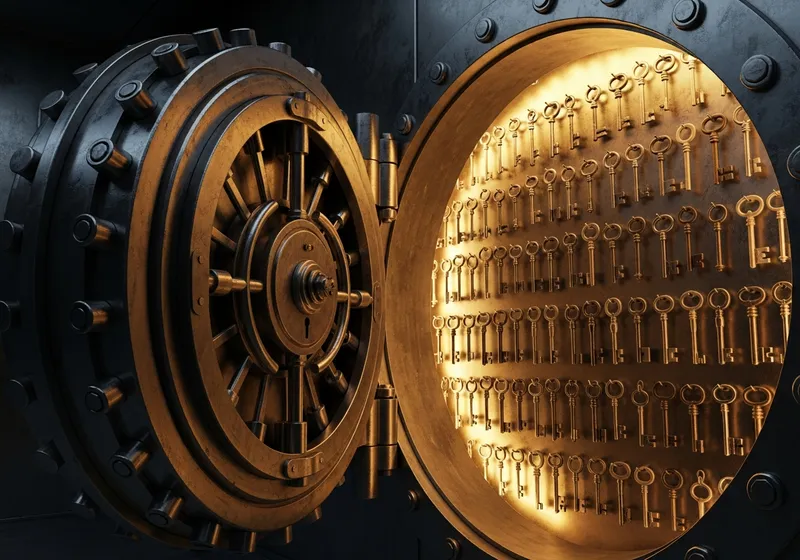
A password manager stores every login you have in an encrypted vault, protected by one strong master password. It fills your usernames and passwords into websites and apps for you, and it generates a new, unique password every time you create an account. That means a breach at one site can no longer spill over into your email, your bank, or anything else.
Using one well comes down to five things: pick a manager, create a master password you can actually remember, install it on every device you own, move your existing logins into it, and let it replace your weak passwords over time. None of these steps is hard. The trick is doing them in the right order so you never feel locked out of your own accounts.
This guide walks through the whole process, including the parts most articles skip: what to do with the passwords already saved in your browser, how to protect the vault itself, and what happens if you forget the master password.
Step 1: Pick a Manager You Will Actually Use
You have three broad options, and any of them beats reusing passwords.
- Bitwarden has a generous free tier, works on every platform, and syncs through the cloud. It is the easiest recommendation for most people.
- 1Password is paid, very polished, and has the best family features. If you want to share logins with a partner or set up a vault for your kids, it earns its subscription.
- KeePass stores everything in a local file that never touches the cloud. It gives you full control, but you handle syncing and backups yourself. Best for technical users.
Your phone and your browser also have built-in password storage. That is better than nothing, but it tends to tie you to one company's ecosystem, and moving out later is a chore. A dedicated manager follows you across every browser, phone, and computer you will ever own.
Whatever you choose, pick one and commit. Running two systems side by side is the most common reason people give up.
Step 2: Create a Master Password That Can Carry the Weight
The master password is the one secret that protects everything else, so it needs to be long, memorable, and used nowhere else. The best approach is a passphrase: four or five unrelated words with a number or symbol worked in, something like copper-baboon-lantern-ferry9. Long phrases like this are far harder to crack than short passwords full of substitutions, and far easier to type on a phone.
Do not base it on your name, your family, your pets, or anything you have posted online. Do not reuse an old favorite password, even a strong one.
Here is the part people miss: your provider cannot reset this password. The vault is encrypted so that only your master password can open it, which means a forgotten master password can mean a lost vault. So write it on paper and store that paper somewhere genuinely safe at home, like a locked drawer or a fireproof box. A paper backup at home protects you from forgetting; it does not help an attacker on the other side of the internet.
Step 3: Install It Everywhere, Then Make It the Default
A password manager only works if it is present at the moment you log in. That means three installs, not one.
- On your computer: install the browser extension. This is where autofill happens, so do not skip it. The desktop app is optional for most people; the extension is not.
- On your iPhone: install the app, then go to Settings, then General, then AutoFill & Passwords, and switch autofill to your new manager. Turn the built-in option off at the same time so two systems do not fight over every login prompt.
- On Android: install the app, then open Settings and search for "autofill". Select your manager as the autofill service. The exact menu name varies by phone maker, but the search box will find it.
Sign in to the manager on each device and confirm a test entry syncs across all of them before you go further. Once autofill is the default, using the vault stops being a decision and becomes the path of least resistance.
Step 4: Move Your Existing Passwords Into the Vault
You almost certainly have passwords saved in your browser already. There are two ways to bring them over, and you can combine both.
The import route: your browser can export saved passwords to a CSV file, and every major manager can import that file in one step. Look under your browser's password settings for an export option, import the file into your manager, then delete the CSV immediately. That file is your entire digital life in plain text, so it should exist for minutes, not days. Empty the trash too.
The save-as-you-go route: just live your normal life online. Each time you log in somewhere, the manager offers to save the login. Accept, and within a couple of weeks the accounts you actually use are all in the vault.
Either way, once the vault holds your logins, turn off the browser's own password saving and clear what it has stored. One vault, one source of truth.
Step 5: Protect the Vault Itself
Your vault is now the most valuable account you own, so give it the strongest protection available.
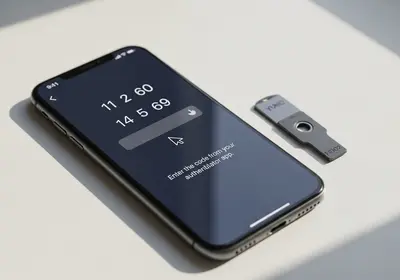
- Turn on two-factor authentication for the manager account, using an authenticator app rather than text messages if you have the choice.
- Save the recovery codes the manager gives you during setup. Print them or write them down and keep them with your paper master password. They are what saves you if you lose your phone.
- Secure the devices that hold the vault. Use a PIN or biometric lock on your phone. On a Windows PC, open the Windows Security app and confirm real-time protection is on. A password manager cannot protect you on a machine that is already compromised.
Set the vault to lock itself after a few minutes of inactivity, and use your fingerprint or face to reopen it quickly. You get the security of a locked vault without typing the master password fifty times a day.
Using It Day to Day
From here, the manager mostly runs itself. When you visit a login page, click the field or the extension icon and it fills your credentials. When you sign up for something new, let it generate the password instead of inventing one: aim for sixteen characters or more, or try a password generator to see what strong random passwords look like. You never need to know these passwords. That is the entire point.
Autofill also gives you quiet phishing protection. The manager matches the real web address, so on a lookalike site with a slightly wrong domain it will refuse to fill anything. If the extension goes silent on a page where it normally works, stop and check the address bar before typing anything by hand.
The vault is useful beyond passwords, too. Most managers store secure notes, card details, and the answers to security questions. Treat those answers like passwords: random text the manager remembers for you beats your mother's actual maiden name, which is often public record.
Clean Up Weak and Reused Passwords Over Time
Do not try to change every password in one sitting. You will burn out around the fifteenth site and quit.
Instead, use the manager's built-in security report. Every major manager has one, and it flags passwords that are weak, reused, or exposed in known breaches. Start with the accounts that can hurt you most: your email account first, since it can reset everything else, then banking, your phone carrier, and any store that keeps a card on file. You can also run your most-used passwords through a password breach checker to see whether they have already appeared in a known leak. Anything that shows up gets replaced first.
After the high-value accounts are done, fix the rest as you naturally log in. A few each week is plenty. Within a couple of months, the reused passwords that made you vulnerable are simply gone.
Where to Start Tonight
You can get the foundation done in under an hour. Here is the order that works:
- Pick your manager and create the account.
- Set a passphrase-style master password and write it on paper. Store the paper somewhere safe at home.
- Turn on two-factor authentication for the vault and save the recovery codes with that paper.
- Install the browser extension on your computer and the app on your phone, and switch your phone's autofill setting to the new manager.
- Import your browser's saved passwords, then delete the export file and turn off the browser's own saving.
- Change one password tonight: your email account. Let the manager generate and save it.
That last step matters more than it looks. Once your email is protected by a password that exists nowhere else, the most common route into your other accounts is closed. Everything after tonight is just steady cleanup, and the manager does most of the remembering for you.