Lock Screen Security
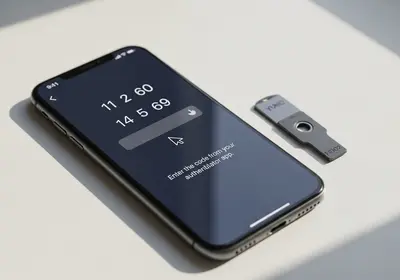
Your lock screen is the first barrier between your personal data and anyone who picks up your phone. Make sure it is set up properly:
- Use biometrics: Fingerprint or face recognition offers a convenient and secure way to unlock your phone.
- Set a strong PIN or passcode: Avoid simple PINs like "1234" or "0000." A six-digit PIN or an alphanumeric passcode is better.
- Enable auto-lock: Set your phone to lock automatically after a short period of inactivity, such as 30 seconds or one minute.
Review App Permissions
Every app you install can request access to different features of your phone, including your camera, microphone, location, contacts, and more. Many apps request more permissions than they actually need.
Take a few minutes to review your app permissions:
- Go to your phone's settings and find the permissions or privacy section.
- Check which apps have access to your location, camera, microphone, and contacts.
- Remove permissions that do not make sense. For example, a flashlight app should not need access to your contacts.
App Store Safety
Stick to your device's official app store. Apps in official stores go through a review process that catches most malicious software. Be cautious about:
- Apps with very few downloads or reviews.
- Apps that ask for excessive permissions.
- Copycat apps that mimic popular apps with slightly different names.
Keep Your Operating System Updated
Software updates often include important security fixes. When your phone notifies you about an update, install it as soon as practical. You can usually enable automatic updates in your settings so your phone stays current without you having to remember.
Back Up Your Data
Regular backups protect you from losing your photos, contacts, and other important data if your phone is lost, stolen, or damaged. Both major mobile operating systems offer built-in cloud backup options that can run automatically in the background.
Remote Wipe Capability
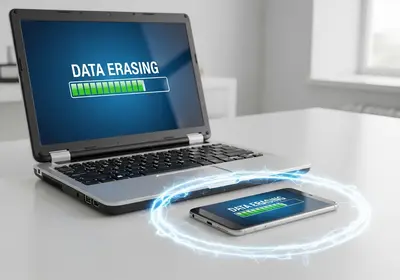
If your phone is lost or stolen, remote wipe lets you erase all the data on it from another device. Both iOS and Android offer this feature through their "Find My" services. Set it up before you need it:
- Make sure location services are enabled for the find-my-device feature.
- Test it by locating your phone from a computer or another device to make sure it works.
Avoid Sideloading Risks
Sideloading means installing apps from outside the official app store. While there are legitimate reasons to do this, it bypasses the safety checks that app stores provide. If you are not sure whether an app source is trustworthy, it is safer to stick with the official store.
Your smartphone is one of the most personal devices you own. These straightforward steps help keep your data safe and give you peace of mind.