Why a Guest Network Matters
When you share your main Wi-Fi password with visitors, you are giving them access to your entire home network. This means their devices can potentially see your computers, printers, shared files, and smart home devices. If their device happens to be infected with malware, it could spread to your network.
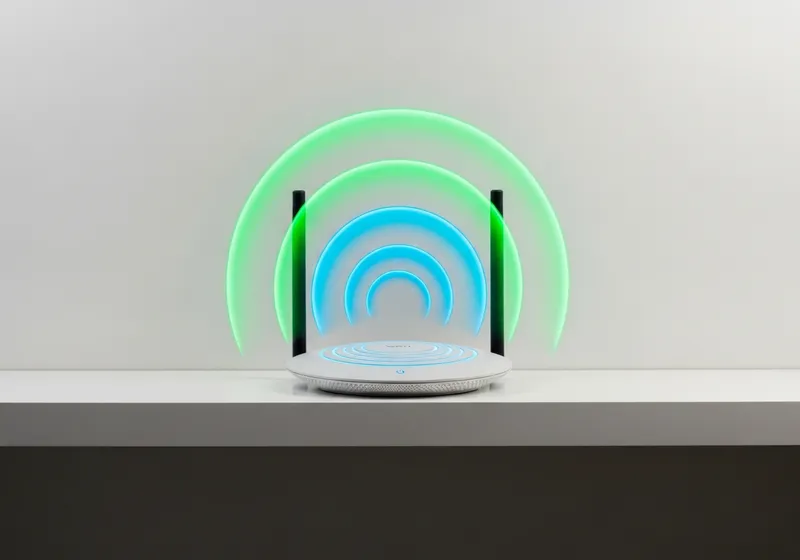
A guest network creates a separate Wi-Fi connection that provides internet access without access to your private network. It is like having a separate entrance for visitors that leads to a different part of the building. They can come in, but they cannot wander into your private spaces.
How to Set One Up
Most modern routers support guest networks, and setting one up is usually straightforward:
- Step 1: Log into your router's admin panel. You can usually do this by typing 192.168.1.1 or 192.168.0.1 into your browser's address bar. If neither works, check the sticker on your router or its manual for the correct address.
- Step 2: Look for a section labeled "Guest Network," "Guest Access," or something similar. This is usually found under Wireless Settings or Network Settings.
- Step 3: Enable the guest network and give it a name (SSID) that is different from your main network. Something like "Smith Family Guest" so visitors know which one to use.
- Step 4: Set a password for the guest network. Use WPA2 or WPA3 security (not WEP, which is outdated and easy to crack).
- Step 5: Save your settings. The guest network should now appear as an available Wi-Fi network on devices.
Security Settings to Configure
While setting up your guest network, look for these additional options:
- Network isolation: This prevents guest devices from communicating with each other and with your main network. Make sure this is turned on.
- Bandwidth limiting: Some routers let you limit how much bandwidth the guest network can use, ensuring visitors cannot slow down your main connection.
- Access scheduling: You can set the guest network to be active only during certain hours if you prefer.
Smart Home Devices on the Guest Network
Here is a useful tip: consider putting your smart home devices, like smart speakers, cameras, thermostats, and similar gadgets, on the guest network instead of your main one. Many of these devices have limited security features, and if one were compromised, the guest network's isolation would prevent the attacker from reaching your computers and personal files.
This approach works well as long as the smart devices do not need to communicate directly with your main computers. Most cloud-based smart home devices work fine on a separate network.
Changing the Guest Password
It is a good practice to change your guest network password periodically, especially after hosting events or if you have given it to many people over time. This keeps your network under your control without the awkwardness of changing your main Wi-Fi password.
Setting up a guest network takes just a few minutes, but it adds a meaningful layer of protection to your home network. It is one of those small steps that makes a real difference in your overall security.