A passkey is a way to sign in to a website or app without typing a password. When a site asks you to log in, your phone or computer shows the same prompt it uses for its lock screen: scan your fingerprint, show your face, or enter your device PIN. You approve, and you are in. There is nothing to memorize, nothing to type, and nothing a scammer can trick you into handing over.
Behind that quick tap, your device is doing real cryptography. Each passkey is a unique digital key that lives on your device, is protected by your screen lock, and only works on the exact site that created it. That last part matters more than anything else: a passkey simply will not function on a fake login page, no matter how convincing the page looks.
You have probably already seen the offer. After a normal login, a site asks whether you want to create a passkey for faster sign-in next time. This guide explains what actually happens when you say yes, why passkeys are safer than even a strong password, and how to set them up without any risk of locking yourself out.
What a passkey actually is
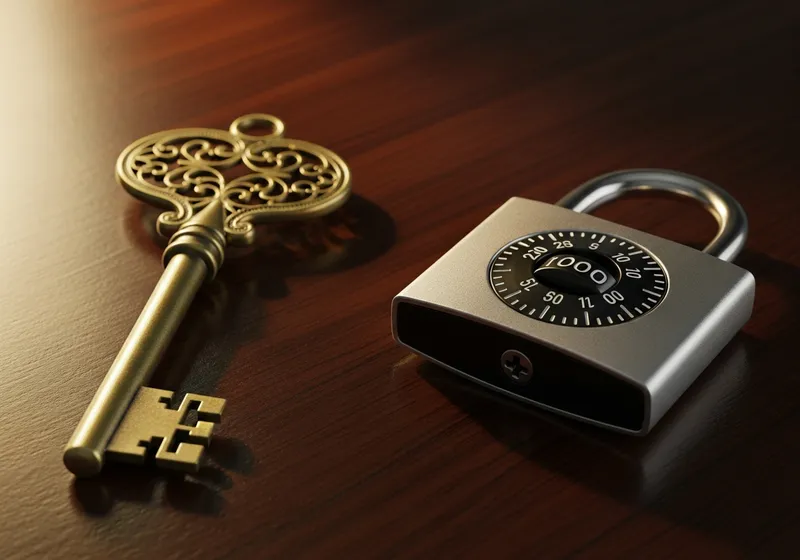
Every passkey is a matched pair of keys, generated by your device the moment you create it. Think of it as a lock and the only key that fits it. The site keeps the public key, which works like the lock: anyone can look at it, and it is useless for breaking in. Your device keeps the private key, the part that actually opens the lock, and never sends it anywhere. Not to the website, not to the cloud in readable form, not even to your own screen.
Your fingerprint or face is not part of the key and never leaves your device either. The biometric check happens entirely on your phone, exactly as it does for your lock screen. The site only ever learns one thing: this person's device approved the login. Passkeys are built on an open industry standard called FIDO, the same technology behind hardware security keys, so they work the same way across phones, computers, and browsers.
What happens when you sign in
The whole exchange takes about two seconds, but the steps explain why passkeys are so hard to attack.
- The site sends your device a challenge, a long random number that has never been used before.
- Your device asks you to confirm with your fingerprint, face, or PIN.
- Once you approve, the private key signs the challenge, producing an answer only that key could produce.
- The site checks the answer against the public key it stored. If it matches, you are signed in.
Notice what never happens: no secret crosses the internet. The private key stays on your device, the challenge is worthless once used, and there is no password for anyone to intercept, guess, or read over your shoulder.
Why passkeys beat passwords
There is nothing valuable to steal from the website. When a company gets breached, attackers usually walk away with a database of passwords. With passkeys, the server only holds public keys. Stealing a pile of locks does not help anyone open a single door.
They cannot be phished. A passkey is bound to the exact web address it was created for. If a scammer lures you to "yourbank-secure-login.com", a lookalike of your real bank, your device will not even offer the passkey, because the address does not match. The most convincing fake page ever built gets nothing, not even the chance to ask. That closes the door on the attack behind most account takeovers, which we break down in our guide to spotting phishing.
There is nothing to reuse. Reused passwords are the reason one breached account turns into ten. Every passkey is unique to one site by design. You cannot reuse it even if you try.
They resist guessing entirely. Cracking software churns through enormous lists of likely passwords. There is no equivalent attack on a passkey, because there is no memorable secret. The private key is a random value so large that guessing it is not a realistic plan.
Where your passkeys live
When you create a passkey, it is saved in a credential manager. Which one depends on where you make it:
- On your phone, passkeys go into the built-in password manager and sync, in encrypted form, to your other devices signed in to the same account. On an iPhone, that is the same keychain that holds your saved passwords. On Android, it is tied to the account you set the phone up with.
- On a Windows computer, passkeys created with Windows Hello are stored on that PC and protected by your face, fingerprint, or PIN.
- In a password manager such as Bitwarden or 1Password, passkeys sync to every device where the app is installed, even across phone and computer brands. If you already use one, this is the tidiest option; if not, our step-by-step password manager guide shows how to get started.
You can also use a passkey on a computer that does not have it, such as a shared or borrowed machine. Choose the passkey option at login and pick the choice to use a phone. The site shows a QR code, you scan it with your phone's camera, and you approve the login on the phone. Your phone confirms it is physically near that computer over Bluetooth, so a scammer in another country cannot trick you into approving their session. Nothing is saved on the computer afterward.
Common worries, answered
"What if I lose my phone?" If your passkeys sync, sign in to a replacement device with the same account and they come back, the same way your photos and contacts do. It is still smart to keep a second way into important accounts: a passkey on another device, a password manager, or recovery codes stored somewhere safe.
"Can whoever finds my phone use my passkeys?" Not without your face, fingerprint, or PIN. A passkey never works silently; every use requires the screen-lock check. This is also a reason to use a strong device PIN, since anyone who knows it can do everything your fingerprint can.
"Is the site storing my fingerprint?" No. Biometrics never leave your device. The site receives a signed yes-or-no from the device, nothing more.
"Do I still need two-factor authentication?" A passkey already folds two factors into one step: something you have, the device holding the key, and something you are or know, the biometric or PIN that approves it. Most sites treat a passkey login as complete on its own. Keep two-factor authentication turned on for any account that still accepts a password, though, because that password is a separate door into the same room.
The catch: what passkeys do not fix yet
Passkeys are genuinely better technology, but the transition is unfinished, and the gaps are worth knowing about before you rely on them.
- Not every site offers them. Support is spreading among email providers, banks, shopping sites, and social networks, but plenty of accounts remain password-only. Expect to live with a mix for a while.
- Your old password usually stays active. Adding a passkey rarely deletes the password. That leftover password is still a working key to your account, so it still needs to be long, random, and unique. Our free password generator makes one in seconds. Some services let you remove the password entirely once a passkey is set; take that option where it exists.
- Account recovery is the weak point. An attacker who cannot beat the passkey will try the "I lost my device" recovery process instead. Treat recovery codes like cash: write them down or print them, and store them offline rather than in a file on your desktop.
- A passkey stuck on one device is fragile. If you create a passkey on a single computer with no sync and no backup, losing that machine can lock you out. Always register a second passkey or keep another sign-in method until you have a backup.
Set up your first passkey tonight
Ten minutes covers the account that matters most and gives you a safety net.
- Start with your email account. Password resets for everything else flow through it, which makes it the master key to your whole online life. Open its security settings and look for "Passkeys" or "Create a passkey."
- Follow the prompt. Your device asks for your fingerprint, face, or PIN, and the passkey is created. There is nothing to write down.
- Test it immediately. Sign out, sign back in, and choose the passkey option. Confirm it works before you count on it.
- Create a backup way in. Add a second passkey on another device or in your password manager, and download the account's recovery codes while you are in the settings.
- Deal with the leftover password. If the account still has one, make it long, random, and unique, or remove it if the site allows going passwordless.
- Say yes to future prompts. As your bank, shopping, and social accounts begin offering passkeys, take them up on it. Each one is a password that can no longer be stolen, guessed, or phished.